Data Cleaner
Clean and standardize spreadsheet data.
An add-in for Microsoft Excel that calculates and displays results to significant digits.
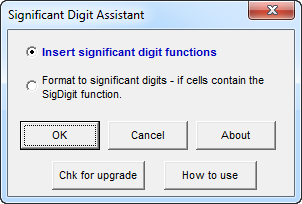
One of the key functions that Microsoft left out of Microsoft Excel is one that returns values to the number of significant digits that you wish to use. The Significant Digit Assistant add-in adds this function to Microsoft Excel! It also contains features that help you add this function to many cells very easily.
The Significant Digit Assistant uses the following rounding rules:
Rule 1: If the digit to be dropped is less than 5, drop that digit and all
others to the right of that digit.
Example: 86.0234 rounded to 3 significant digits is 86.0
Rule 2: If the digit to be dropped is greater than or equal to 5, increase
the value of the last digit retained by one.
Example: 0.06587 rounded to 3 significant digits is 0.0659
Rule 3: If the digits to be dropped are to the left of the decimal point,
zeros are used as their replacements.
Example: 2111 rounded to 1 significant digit is 2000
Rule 4: If the digit to be dropped is 5 and is followed by zeros, drop the 5 and
(i) keep the last digit as is if the digit before the ‘5’ is even, or
(ii) increase the last digit by 1 if the digit before the ‘5’ is odd.
Example 1: 47.250 rounded to 3 significant digits is 47.2
Example 2: 47.350 rounded to 3 significant figures is 47.4
Please note that although all calculations for rounding are done using double precision, calculations are digital and subject to the values being supplied to the significant digit function and calculated by it to suffer from digital imprecision. For example, a value that you see in a cell may be visually 0.5. There is a slight chance that Excel may be carrying this value as 0.500000000001 or 0.4999999999, in which case the Significant Digit Assistant treats this as a number not equal to 0.5 and follows rules 1 and 2 for rounding.
Clean and standardize spreadsheet data.
Split and combine address data in Excel.