Data Cleaner
Clean and standardize spreadsheet data.
An add-in for Microsoft Excel that consolidates data from multiple workbooks and worksheets.
The Consolidation Assistant add-in for Microsoft Excel is designed to help you consolidate data from multiple workbooks or from multiple worksheets. It is compatible with Microsoft Excel 2010–2021 and Office 365.
One of our customers recently received 47 workbooks and needed to get data from each sheet named “data” in these files.
With the Consolidation Assistant, she was able to first create a new workbook that pulled the data sheets (and renamed them so she knew where they came from) into one workbook. At this point, she had 47 sheets.
She then used the consolidate sheets feature to consolidate all 47 sheets into one worksheet. She could then use pivot tables and data filtering to analyze the data.
The following is the Consolidation Assistant’s main menu, which illustrates its many features:
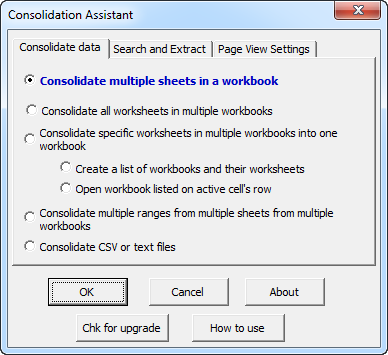
Consolidation can be done several ways:
Combining worksheets from a list of workbooks is often a multi-step operation. First, the Consolidation Assistant helps you to create a list of files and their worksheets. For those sheets you wish to consolidate, you just type the name to use in the consolidated file to the right of the existing name. You then tell the Consolidation Assistant to consolidate these sheets into a new workbook.
When the consolidation is finished you will end up with a workbook containing each of the sheets that you specified. You can then use other features in the Consolidation Assistant to either combine these sheets together or to extract specific ranges from each of the sheets.
The Consolidation Assistant has several features that allow you to conveniently view your data. One freezes panes on all selected sheets. Another sets the same cell on all selected sheets to the upper left corner, and at the same time sets the zoom to the same setting on all the worksheets.
Once you have the data consolidated into one workbook, you can use the search features of the Consolidation Assistant to extract ranges from selected worksheets. For example, if row 50 is the total row for a group of sheets, you can extract this row from those sheets. If the total row is identified by the words “Total Row” but is not always the same row, you can use the search for matching text and extract the total row values.
One of our customers used the Consolidation Assistant to consolidate a survey worksheet he had sent out to over 100 managers. The worksheet had responses scattered all over it. The customer first combined all the survey sheets using the Consolidation Assistant into one workbook, with each sheet renamed from “survey” to the manager names.
Next, he used the extract feature of the Consolidation Assistant to extract values from the same cell on each sheet and place on a new worksheet, which became his database worksheet.
Another customer with a similar situation had to use the Consolidation Assistant’s search and extract option because he forgot to protect the sheet from users inserting rows! As a result, data was never in the same cell on all the sheets. But the Consolidation Assistant came to his rescue!
If you are consolidating CSV or text files, options in the Consolidation Assistant allow you to:
CSV and text file consolidation allow you to:
“Thank you, I have used it and love it. I really appreciate your help.” — Suzanna Creasman
Clean and standardize spreadsheet data.
Shift and rearrange words within cells.