Backup Assistant
Automatically backup files when you open them and before you modify them.
An add-in for Microsoft Excel that tracks your recent files and makes opening and e-mailing them effortless.
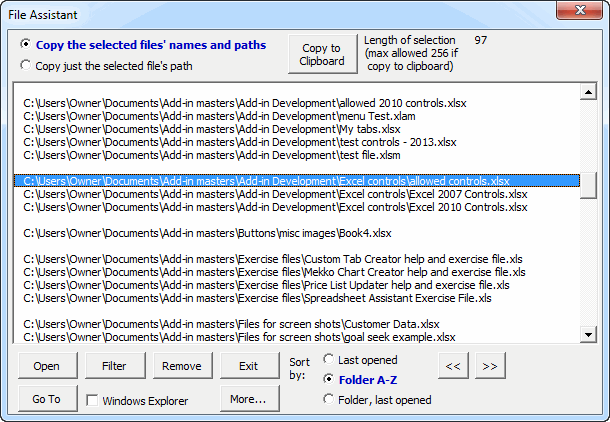
The File Assistant add-in for Microsoft Excel keeps track of the last 200 files you opened. When you click the File Assistant’s quick access button, its dialog appears with your recent files ready to open.
To open one or more files, select the files you wish to open and click the Open button. If you select just a single file, you can either open it or go to its directory by clicking the Go To button. If the check box for using Windows Explorer is checked, Windows Explorer opens to the selected file’s directory; otherwise Excel’s File Open dialog is displayed with the current directory being that file’s directory.
You can sort the list of files by clicking any of the three sort-by buttons, sorting your files many different ways. The Filter button displays just the files containing specific text, helping you narrow down when searching for a particular file. The Remove button removes files from the list you no longer wish to see — the files are not deleted or erased, and re-opening them adds them back to the list.
To e-mail one or more files, select them in the File Assistant’s dialog and click the Copy to Clipboard button. This copies the paths and file names of the selected files to the clipboard. Display your e-mail program’s file attachment dialog, press Ctrl-V (or right click and select Paste), and when you press enter the files are attached — simple, easy, and a lot faster than searching through drives, folders, and files!
If you have many files to e-mail, you can copy just the path of a file to the clipboard and paste it into your e-mail program’s file attachment dialog. To do this, select a single file and click the second option button to copy just the file’s path; when you press enter, the file’s folder is displayed, making it easy to select files from that folder.
Automatically backup files when you open them and before you modify them.
Quickly find and go to any column on a worksheet via a descriptive list.
Extract rows of data into columns for easy review and printing.
Move from sheet to sheet with ease. View a list of all your sheets with one click.
Add over 200 time saving features to Excel.