Backup Assistant
Automatically backup files when you open them and before you modify them.
View Assistants Menu
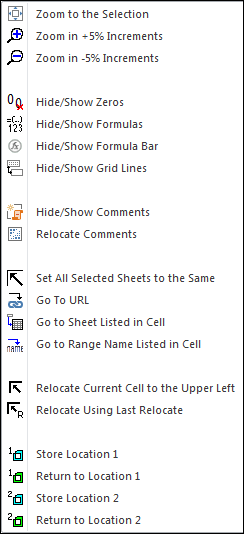
The following is the View Assistants menu that appears when you click on the View Assistants button. Any of the features can be added to Excel's quick access toolbar for instant use any time.
The View Assistants menu is full of useful features. We like the zoom in or out in 5% increments, as we can fine-tune our view of our worksheets.
We are grid line haters, so you know we use the Hide/Show Grid Lines feature a lot. Sure, you can do it manually, but exactly where is that feature in Excel?
If you have a set of worksheets with common data, such as manufacturing site or product performance data, quite often you want to view the same section of each of those worksheets. To do that without the Spreadsheet Assistant, you must go to each sheet, scroll around, get frustrated, and view the data. With the Spreadsheet Assistant, you can do it several ways. One way is to use the Set all Sheets to the Same View feature. Another way is to use the Relocate features.
If you ever need to go back and forth between two different locations — different worksheets in the same workbook or different workbooks — then you will understand why we added a way to store a location and return to it with just a single click. When we are using these features, we will add them to Excel's quick access toolbar for easy use. And when we no longer need them, we just delete them from the toolbar until the next time.
Automatically backup files when you open them and before you modify them.
Create your own toolbar of buttons to quickly format cells and rows.
Quickly find and go to any column on a worksheet via a descriptive list.
See a list of the past 100 files you have opened and re-open any of them.
Move from sheet to sheet with ease. View a list of all your sheets with one click.
Extract rows of data into columns for easy review and printing.